
Print one file or a group
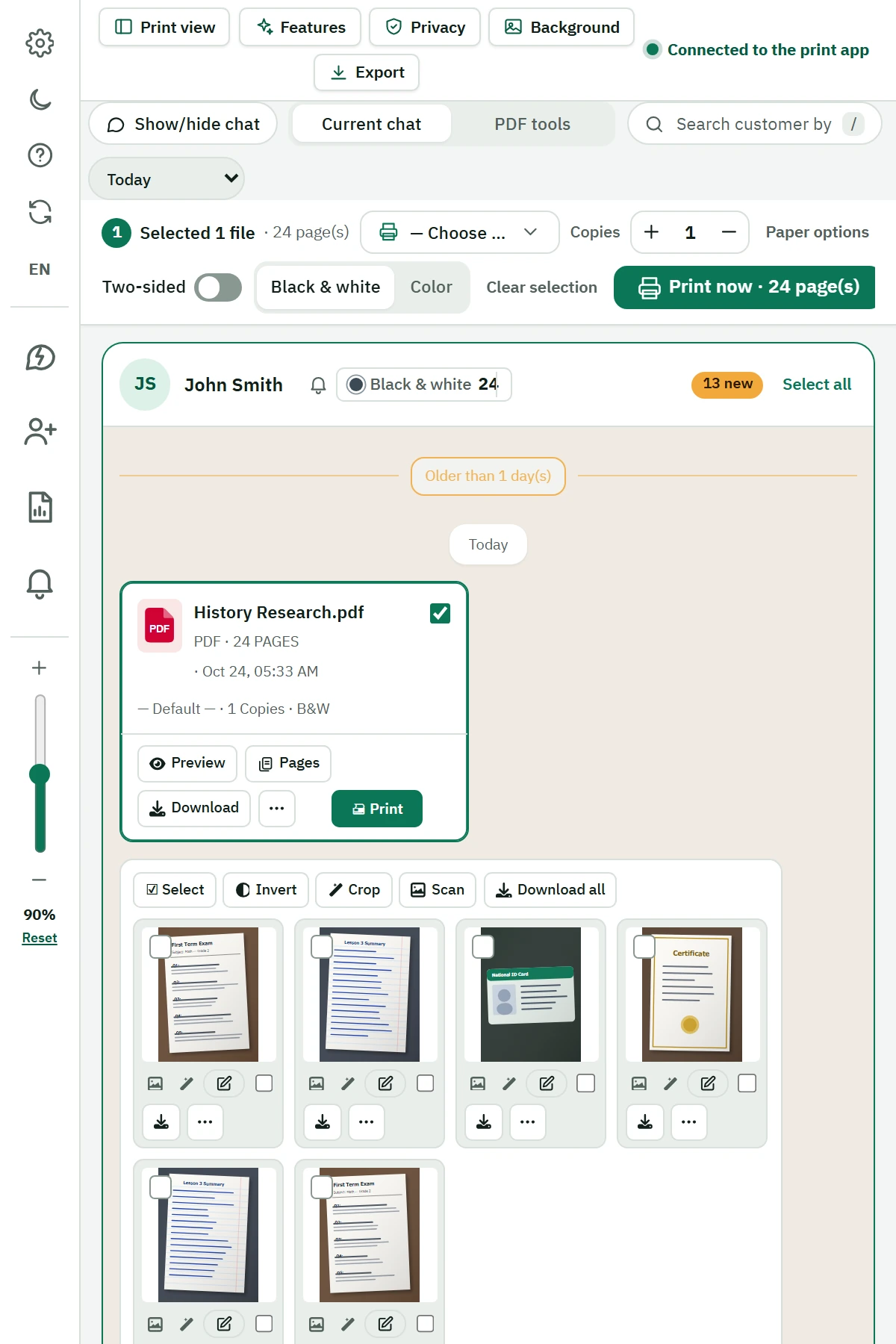
Print PDFs, Word documents, PowerPoint presentations and images. Select files individually or drag to select a group.
From the conversation to the printer
Customer files arrive in chat.
Prepare and print them in the same place.
A Chrome extension that brings the files and images in a conversation into a panel beside WhatsApp Web, so you can choose what to print and keep customer orders organized.
7-day free trial · Printing requires Windows and Print System
For copy shops and stationery stores
When a customer sends several documents and images, see them together, choose the files for the order and review printer settings without opening each file manually.
Tools for the working day
From receiving customer files to finding a previous order.
Print PDFs, Word documents, PowerPoint presentations and images. Select files individually or drag to select a group.
Set copies, color, orientation and two-sided printing according to the capabilities of your printer.
Check the sheet count, including black-and-white and color counts, before sending the order to the printer.
Crop, rotate and resize images, or add text and arrows. Save the edited image as a new copy while keeping the original.
Search the printed-file archive and reprint files. Convert PDFs to images or compress files when needed.
Search by name or the last digits of a phone number. Use reminders, customer reports and quick replies you choose to send.
A clear path to your first order
The built-in guided tour introduces the tools, and you can return to it later.
Install from the Chrome Web StoreUse Google Chrome, sign in to WhatsApp Web and open the extension panel.
Download Print System from inside the extension and run it. Make sure your printer is installed and working on the computer.
Review the files, choose the ones you need, check the print settings and send the order.
Before installing
Direct printing uses the companion program running on your computer.
Practical guides
Select several files and review copies, color and two-sided settings before printing.
Read the guide Documents and images guidePrepare documents and images, and edit a new copy of an image before printing.
Read the guideFrequently asked questions
The extension lets you select files and images in its panel and print through the companion program without manually opening each file. The file must be available in the conversation and the local program must be running.
Direct printing with this product requires Windows and Print System. Phones and Macs are not included in the supported printing setup described here.
The trial lasts 7 days. According to the product privacy policy, it starts when you open the extension while signed in to WhatsApp Web and is linked to your account number. One trial is available per number and per device. The account number and name are used to manage the trial and subscription.
Plans and limits vary. Check the current plans page or ask about subscriptions on WhatsApp before subscribing.
Edits are saved as a new printable copy. The original stays unchanged. Select the copy you want to print, or hide the original in the extension to prevent accidental printing.
Files are processed and printed on your computer. A separate server handles trials and subscription checks using account and technical information described in the product privacy policy.
No. Smart Print Assistant is independent and is not affiliated with or endorsed by WhatsApp or Meta.
Ready to try it at work?
Install the extension. For help or subscriptions, contact us on WhatsApp.